
Direct Editing: Update Content Without Credits
In Creght, tweaking copy or swapping an image doesn't require AI. Most text and images on your pages support Direct Editing — double-click to change them, see the result instantly, and spend zero credits.
Save AI for what actually needs it (layout changes, new sections, bulk rewrites). For everyday copy edits, Direct Editing is all you need.
Double-click to start editing
Double-click any text on the design canvas and two things happen:
- The text enters in-place editing: an amber outline appears and the cursor lands right where you clicked. Type your change, press Enter to save or Esc to cancel, or click anywhere else to save automatically.
- The Element Edit panel opens beside it, listing everything on this element you can edit directly.
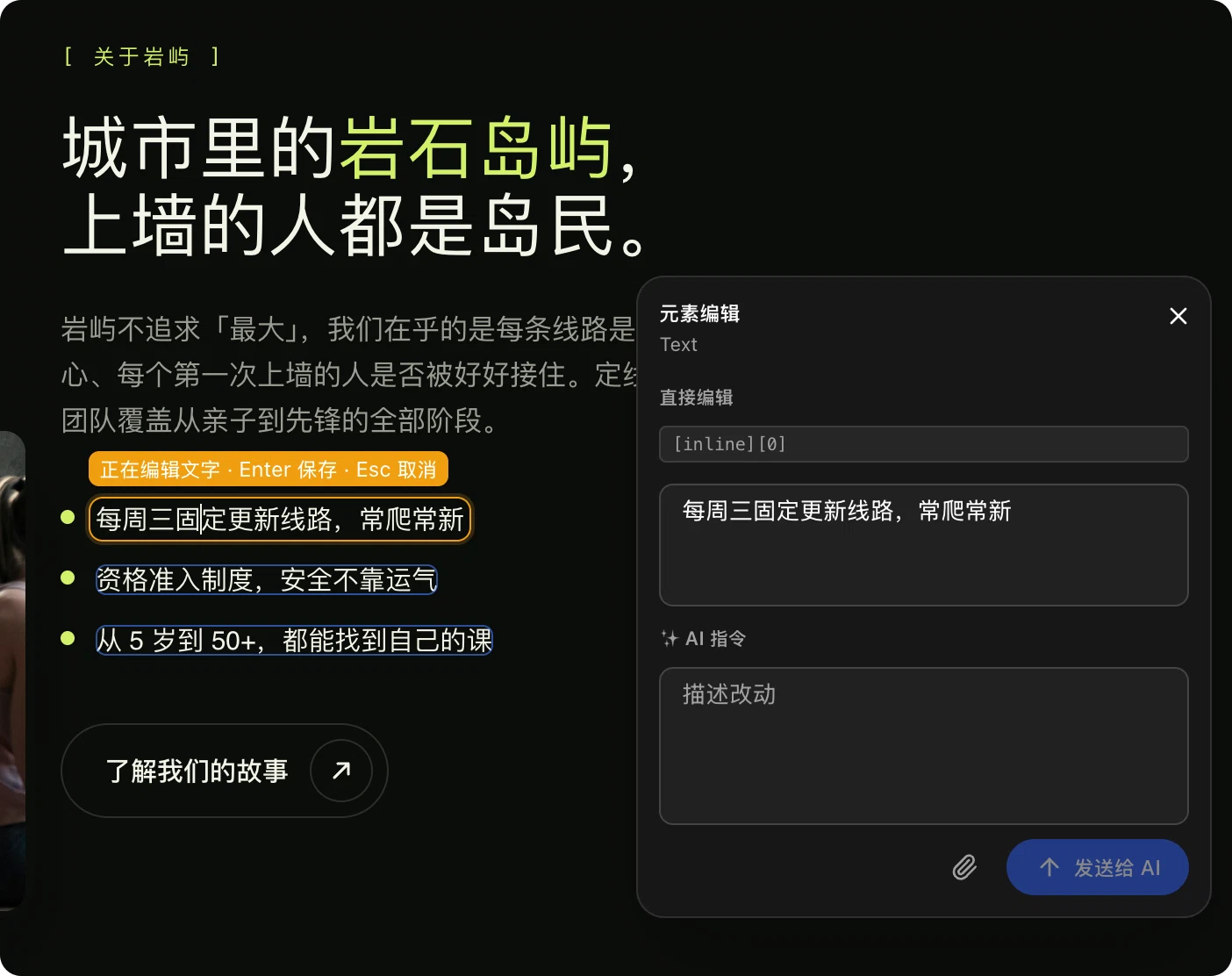
The panel has two sections:
| Section | What it does | Credits |
|---|---|---|
| Direct edit | Change text, images and component props — written straight into your code | Free |
| AI instruction | Describe complex changes in natural language for AI to make | Metered |
If the Direct edit section shows an input, that content can be changed at zero cost.
Edit every prop of a component
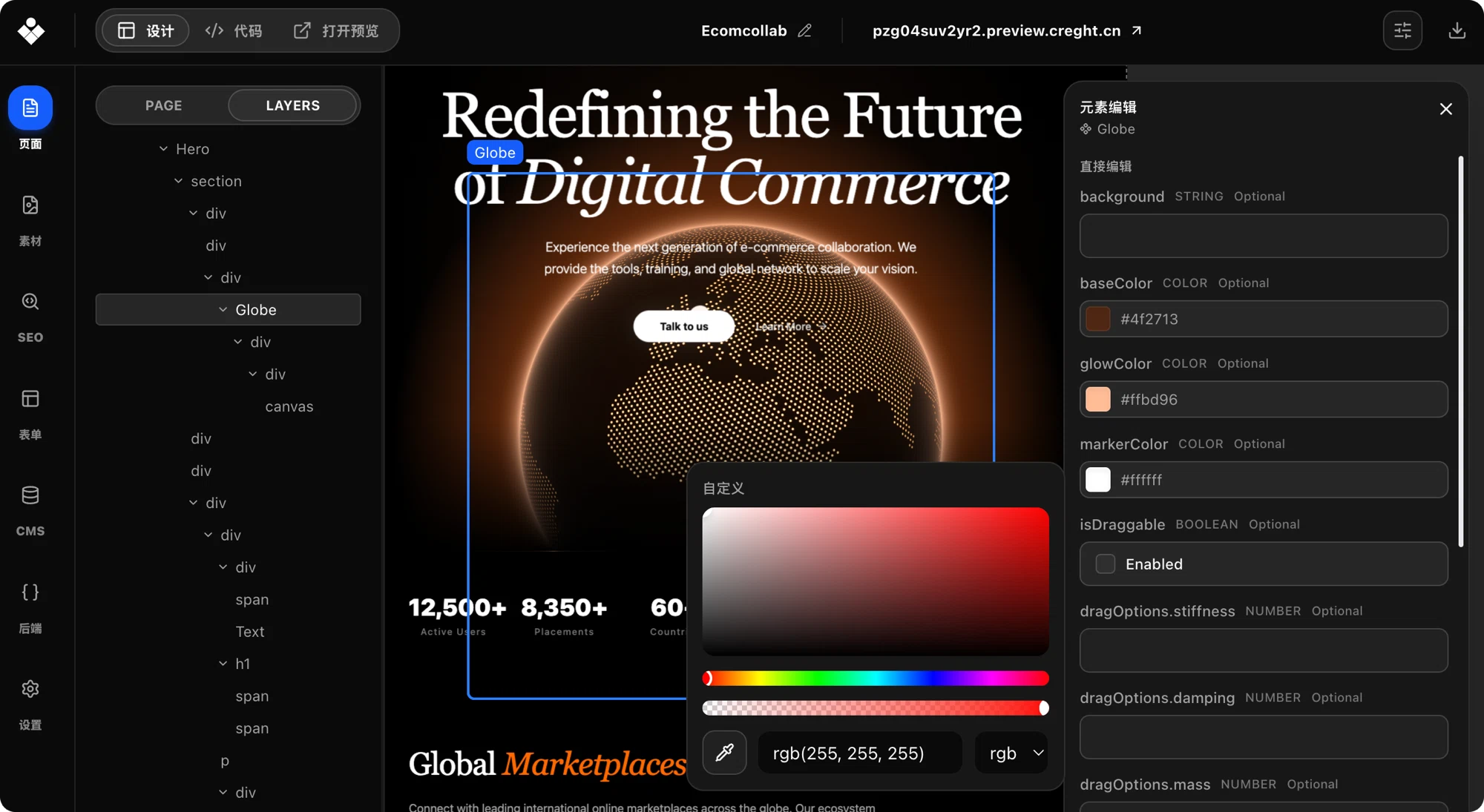
When you select a component (a pricing card, carousel, button…), the panel lays out each of its props with its own control:
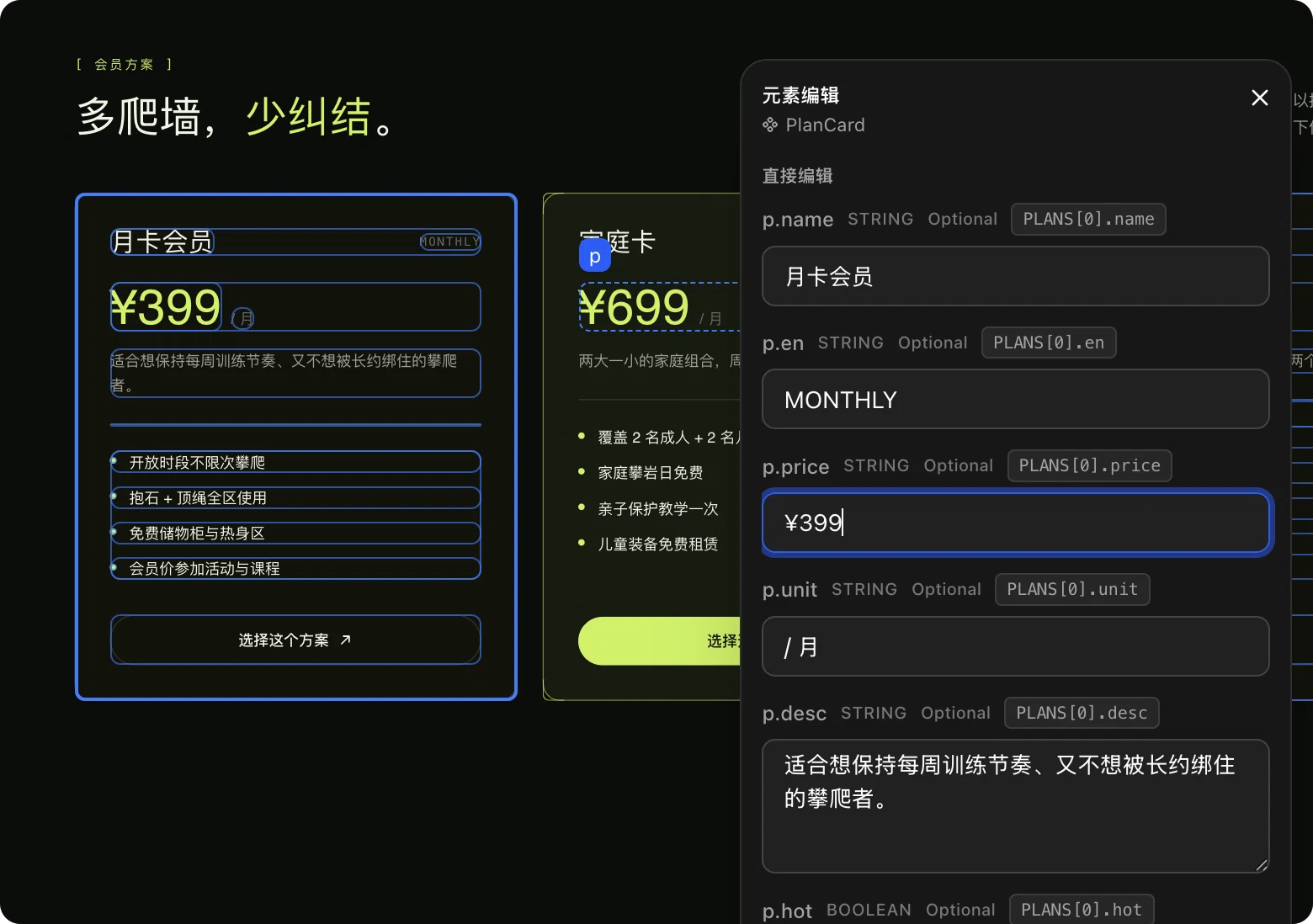
- Text props: edit names, prices, descriptions in place;
- Color props: pick from a color picker or type a value;
- Boolean props: toggle checkboxes like "highlighted" or "draggable";
- Number props: type values like animation duration or damping.
Components reused across the page are handled too — Creght knows which card you clicked, and your change lands only on that instance's data.
Edits go back to the real source
Note the source badge next to each prop, like PLANS[0].price. It tells you where this content actually lives: a data list, a translation file, a shared constant, or CMS content.
Direct edits are written back to that source, not just painted over:
- Changing "¥399" on a pricing card updates the matching entry in the pricing data list;
- On a multilingual site, edits update the current language's translation file — other languages are untouched;
- Editing shared copy used in several places (like your site name) updates every usage, and the badge tells you so up front;
- For CMS content, the panel links you straight to the CMS entry to edit it there.
Replace images
Select an image and the Direct edit section lets you:
- Upload a new image or paste an image URL;
- Edit the alt text (good for SEO);
- Adjust the object fit (cover, contain…).
Just like text, images sourced from data lists or shared config are written back to the data source.
When to use AI instructions
Direct editing covers most text and images on a page. A few things are computed at runtime (like conditionally assembled copy) and can't be edited safely in place — in those cases the panel offers the AI instruction box instead; describe the change in one sentence.
These are also better jobs for AI:
- Layout, spacing and visual style changes;
- Adding or removing page sections;
- Bulk edits ("translate all button labels to English");
- Changing a component's structure or behavior.
Shortcuts
| Action | How |
|---|---|
| Enter in-place editing | Double-click text |
| Save | Enter, or click anywhere else |
| Cancel | Esc |
| Open the element edit panel | Double-click any element |
From fixing a typo to reworking a whole pricing table, direct edits land in seconds — no queue, no wait, no credits. Leave the complex stuff to AI; leave the simple stuff to a double-click.