
Prompt Library
The Prompt Library helps you quickly find prompts for different website styles. You can use an existing prompt directly, then add your own business requirements so AI can generate a site in that style.
Open the Prompt Library
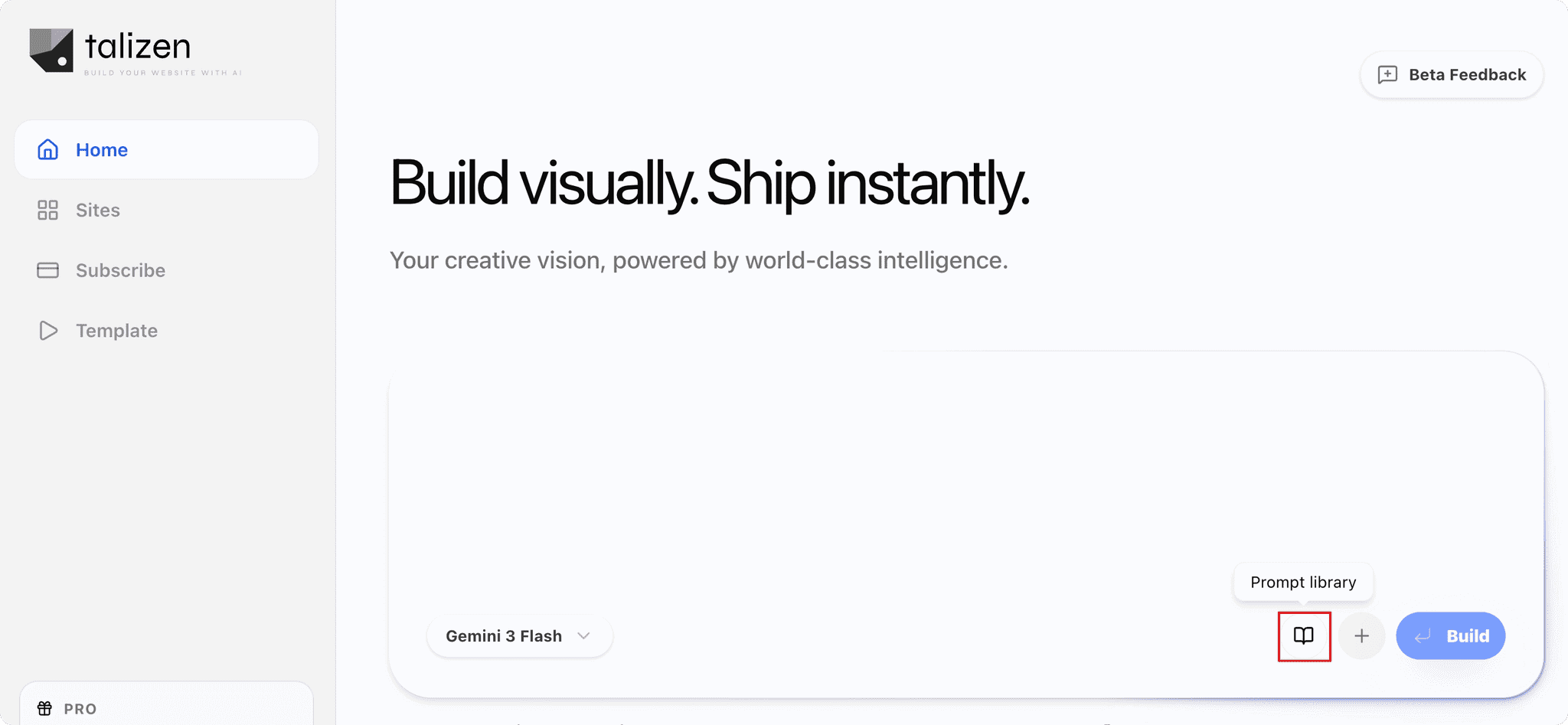
On the homepage, click the Prompt library button at the bottom of the chat dialog.
Choose a Prompt
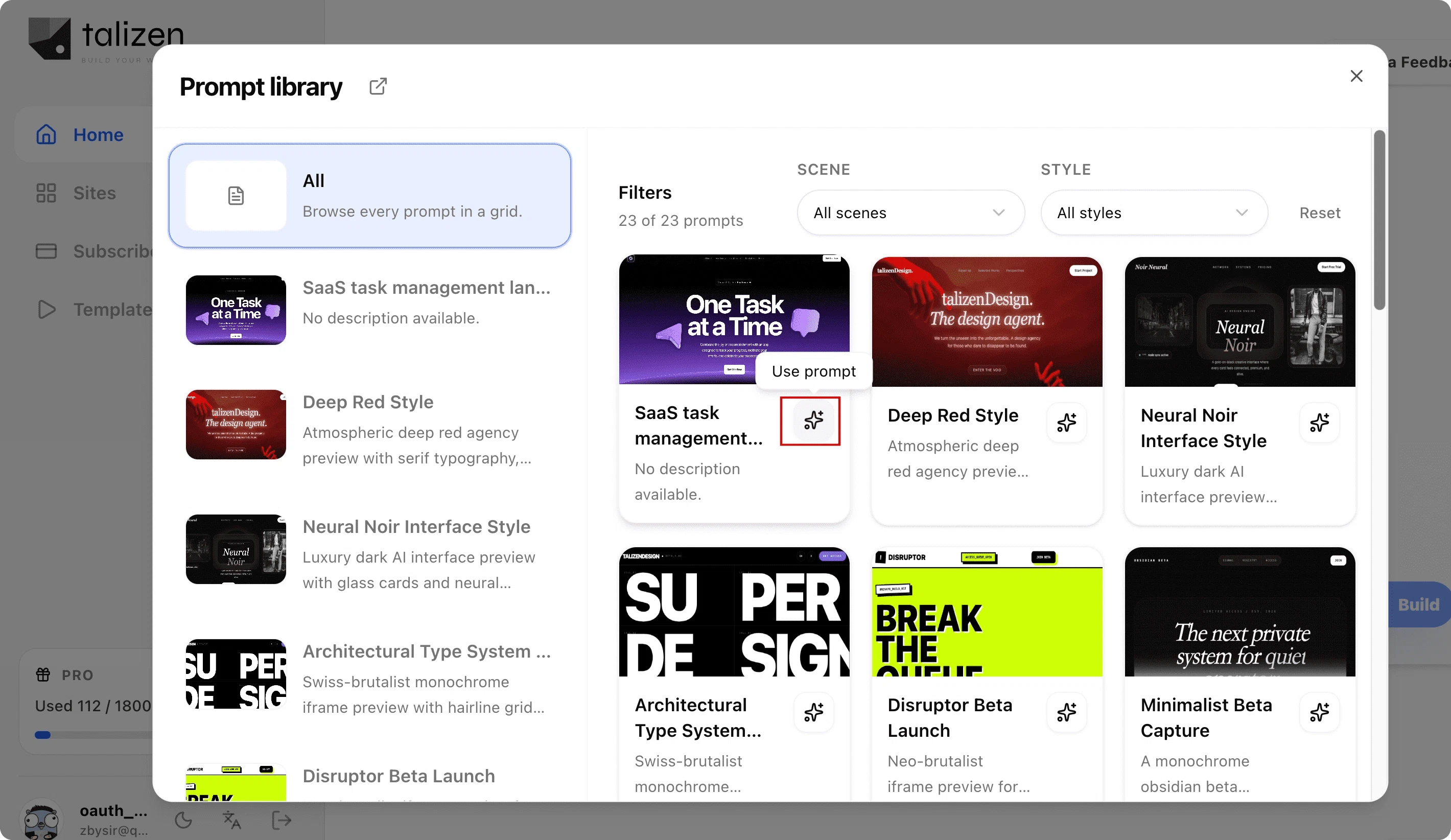
Choose a prompt with the style you want, then click Use prompt.
Add Your Requirements
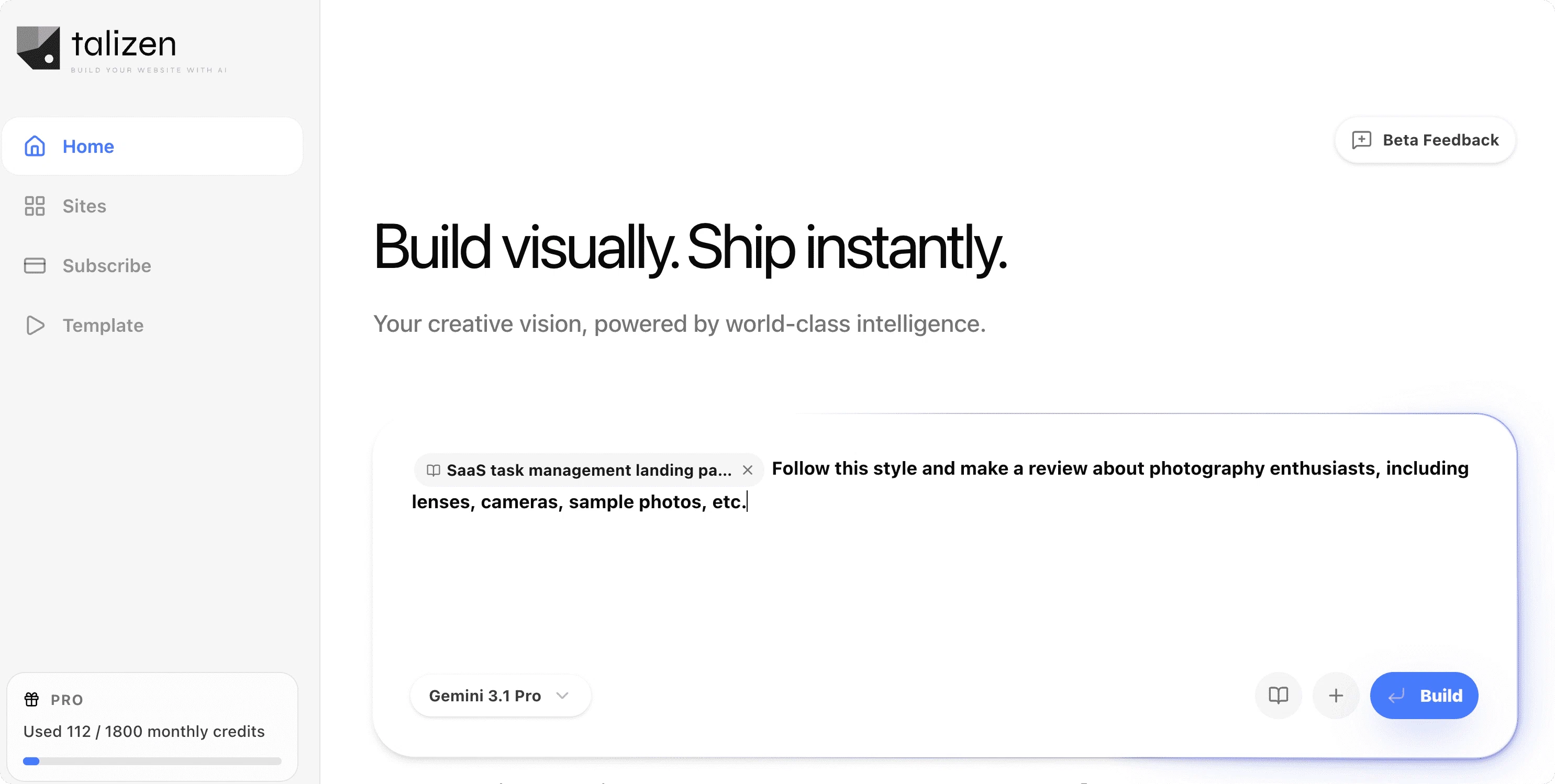
After using a prompt, you can continue describing your own requirements. For example:
Follow this style and make a review about photography enthusiasts, including lenses, cameras, sample photos, etc.
You can add industry information, page content, product details, target users, and visual preferences. AI will keep the selected style while generating a site that better matches your use case.
Generate the Website
After confirming the prompt and requirements, click Build. AI will generate a website with a similar style.
If the result needs more changes, continue describing updates in the chat, such as making the style more premium, adding product sections, changing copy to English, or adding a contact page.
Explore More Prompts
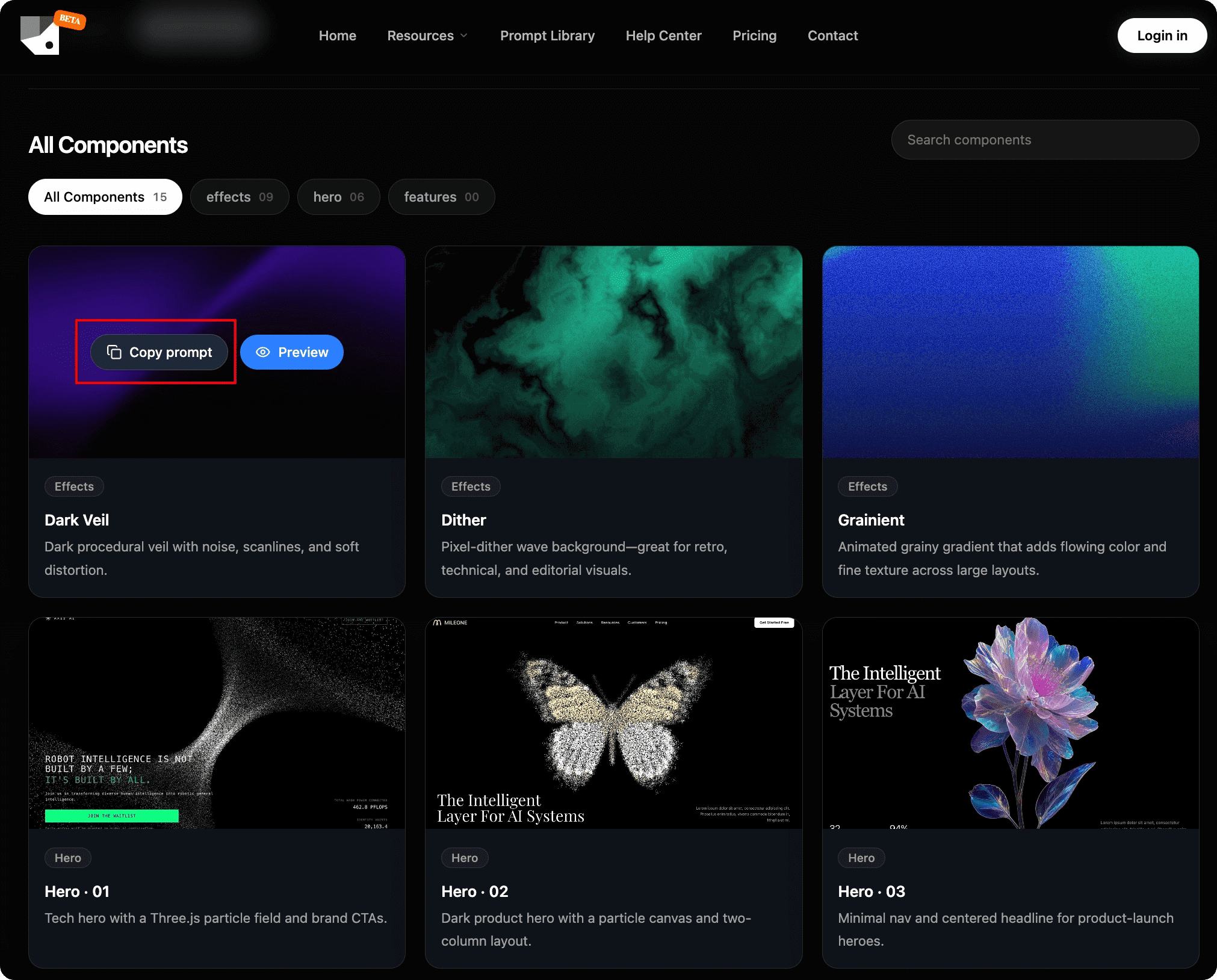
You can visit PromptLib to explore more prompts and copy them directly:
https://promptlib.talizen.com/
Tips
- Start with a prompt close to your target style, then add business details.
- For company websites, add business scope, advantages, and page structure.
- For portfolios, add work types, presentation format, and personal style.
- For product pages, add product benefits, target users, and conversion buttons.