
Create Your First Website in 5 Minutes
Welcome to Creght AI.
This tutorial walks you through creating a website, editing its content, and publishing it online. Even without design or development experience, you can generate a usable website in a few minutes.
After completing this tutorial, you will know how to:
- Create a website with a template or AI
- Edit website text and images
- Use AI to adjust content in batches
- Add pages and sections
- Set SEO and publish the website
Step 1: Create a Website
Creating a website includes three actions: choosing a creation method, entering your AI requirements, and waiting for the website to be generated. After entering Creght, choose either template creation or AI creation based on your needs.
Option 1: Use an AI Template
For first-time Creght users, starting with a template is recommended.
Suitable scenarios:
- Company website
- Foreign trade independent site
- Product showcase site
- Brand website
- Marketing landing page
Choose a template close to your needs to get started.
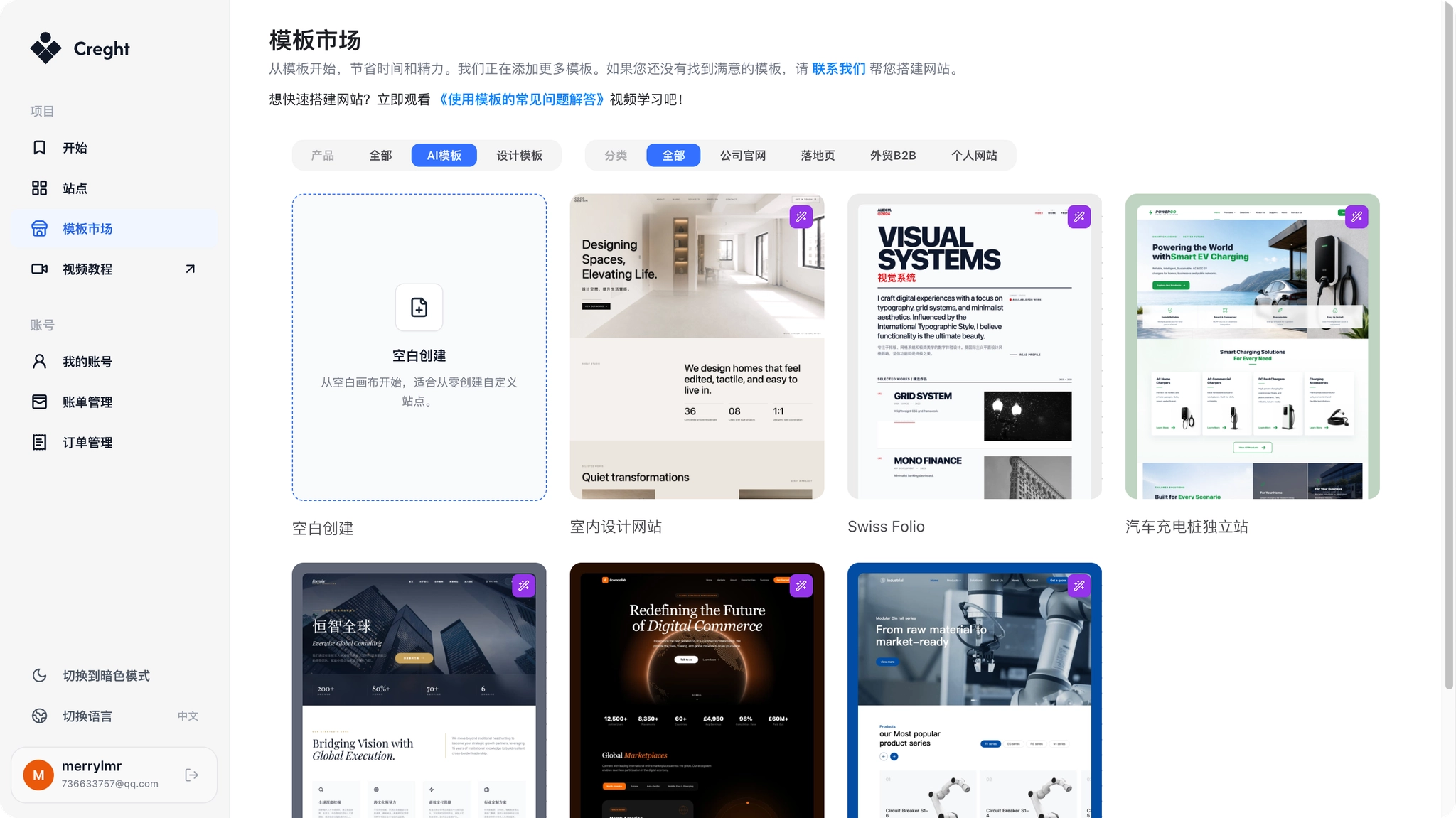
Click Use Template. The system will automatically open the editor.
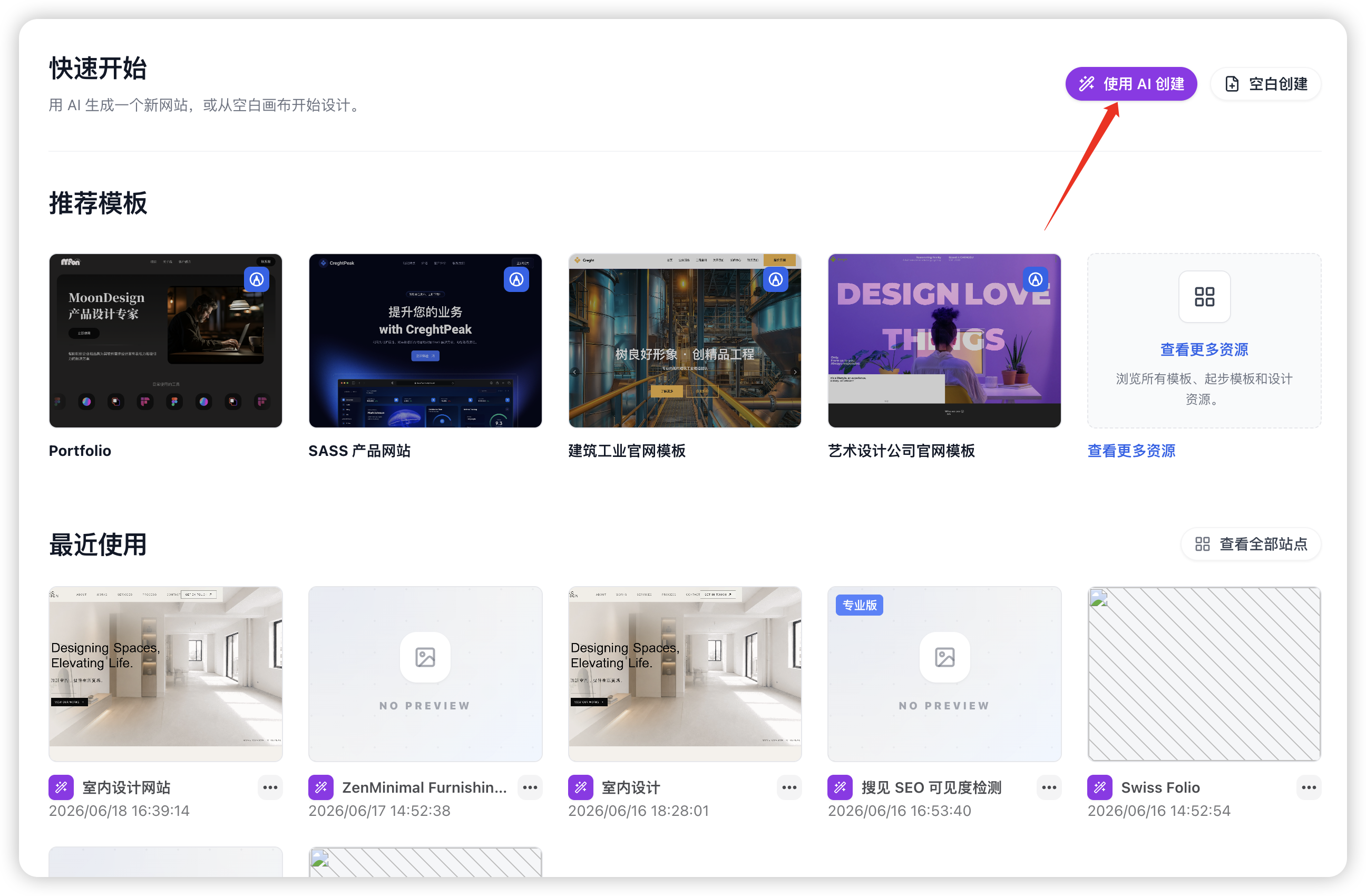
Option 2: Use AI Creation
If you cannot find a suitable template, you can ask AI to generate a website from your description.
Click Use AI Creation to enter the AI creation interface.
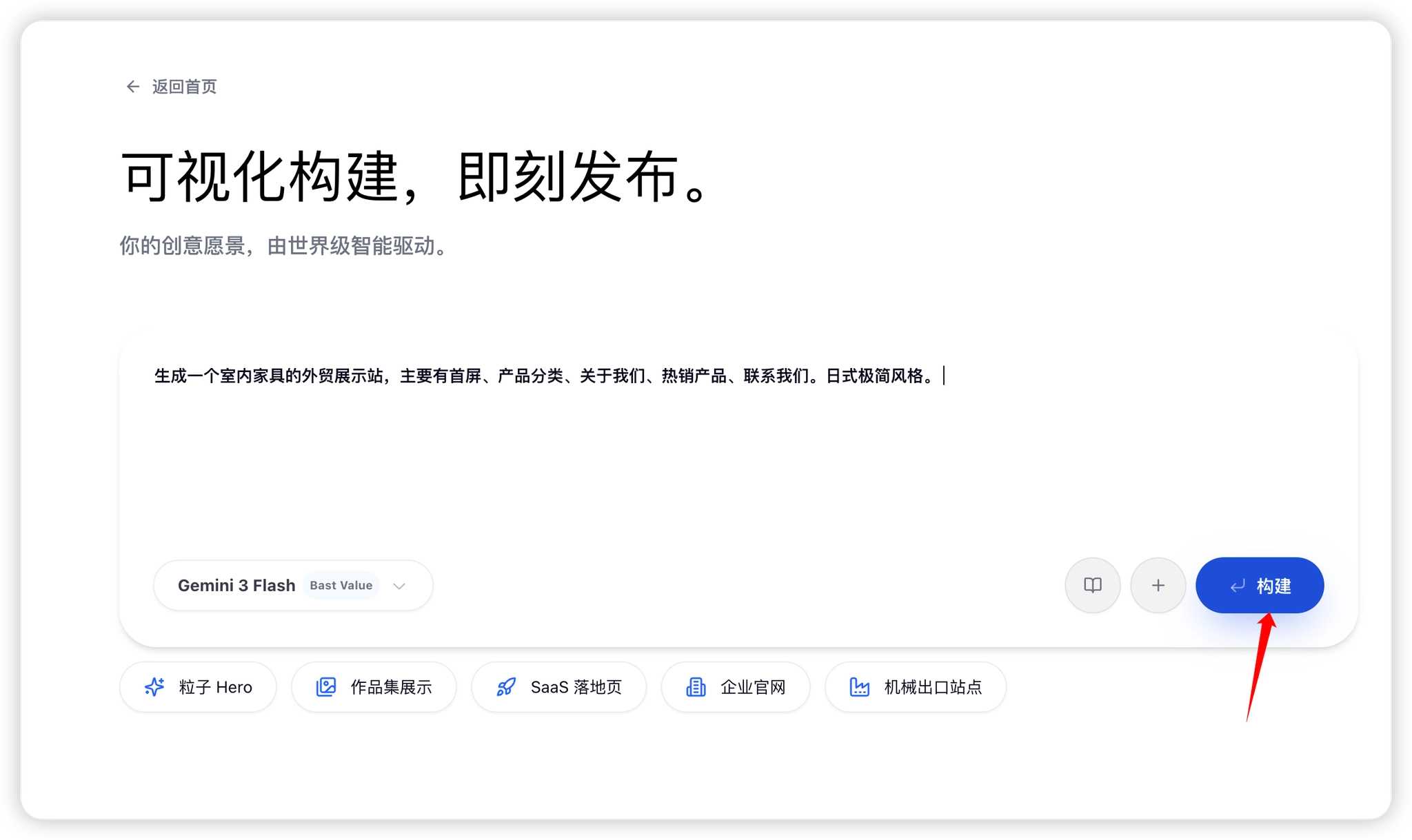
Enter AI Creation Requirements
Write your requirements in this order: website type + page content + website style. That gives AI the most accurate result. You can also upload reference images so AI can better understand your visual direction.
Example prompt:
Generate an interior furniture foreign trade showcase website, including home, product categories, about us, best-selling products, and contact us. Use a Japanese minimalist style.After entering the prompt, click Build.
For results that match your expectations more closely, see AI Website Prompt Writing Guide, which covers full scenario examples and tips for writing requirements.
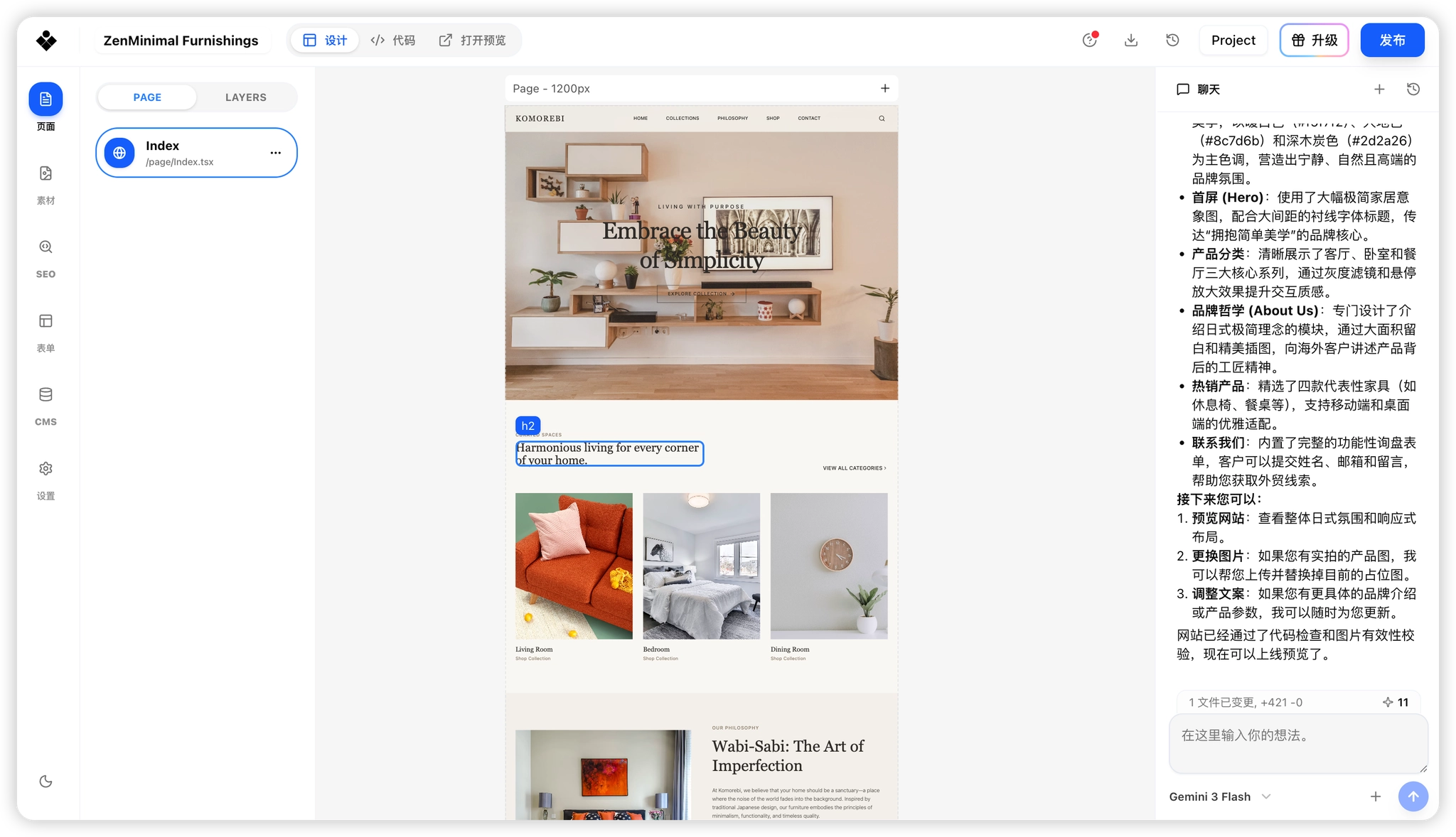
Wait for AI to Generate the Website
AI will generate a complete website based on your description.
It usually takes 30 seconds to 1 minute. When generation is complete, the system automatically opens the editor.
Step 2: Edit Website Content
After entering the editor, you can choose different editing methods based on the page content.
Case 1: Directly Edit Text or Images
If a page element supports direct editing, double-click the text to change it.
Common editable content includes:
- Company name
- Headline copy
- Product introduction
- Contact information
- Button copy
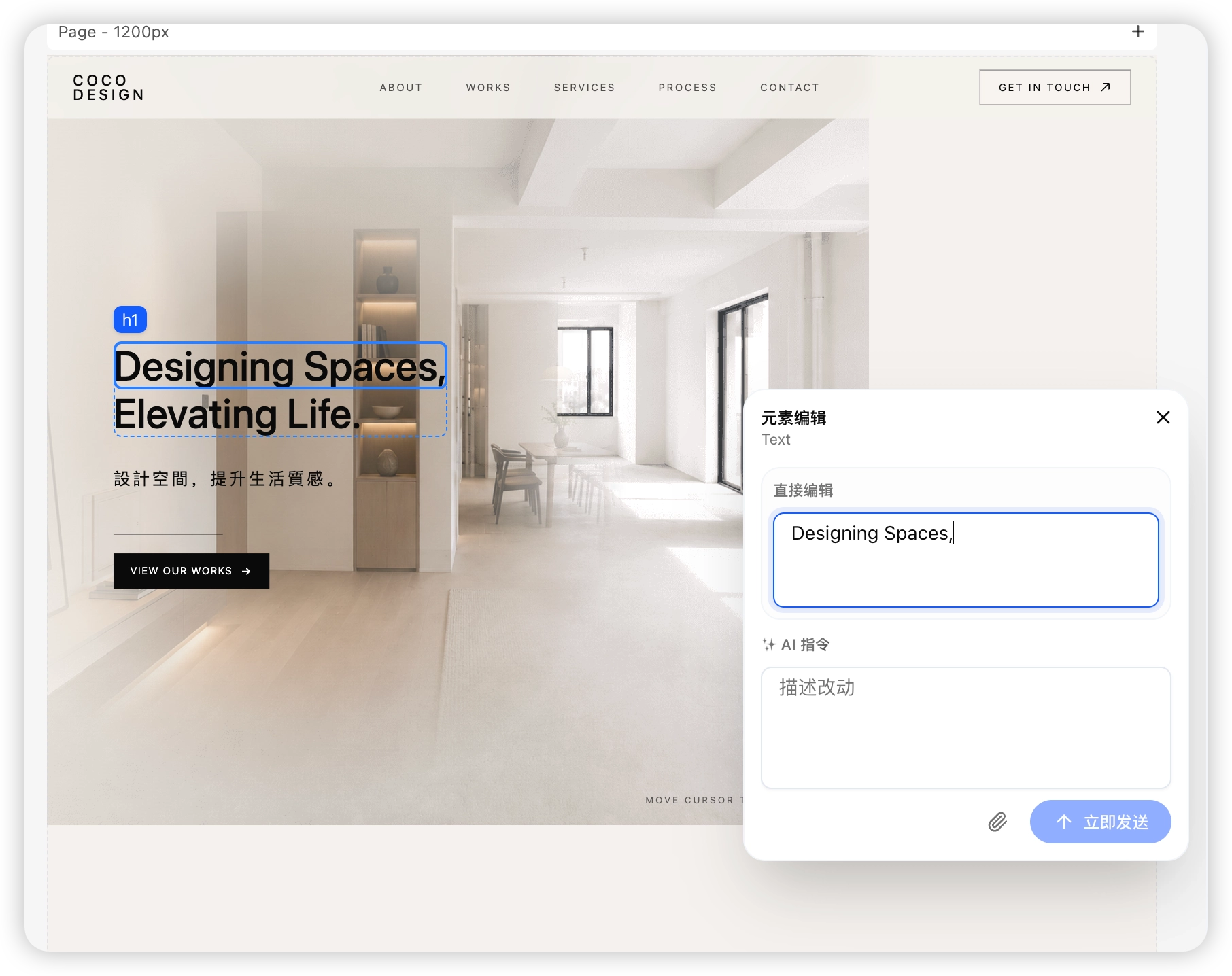
Case 2: Use AI to Edit Content
If selected text or images cannot be edited directly, use AI to complete the adjustment.
This takes two steps:
First, upload an image or select the content you want to modify, then click Send Now.
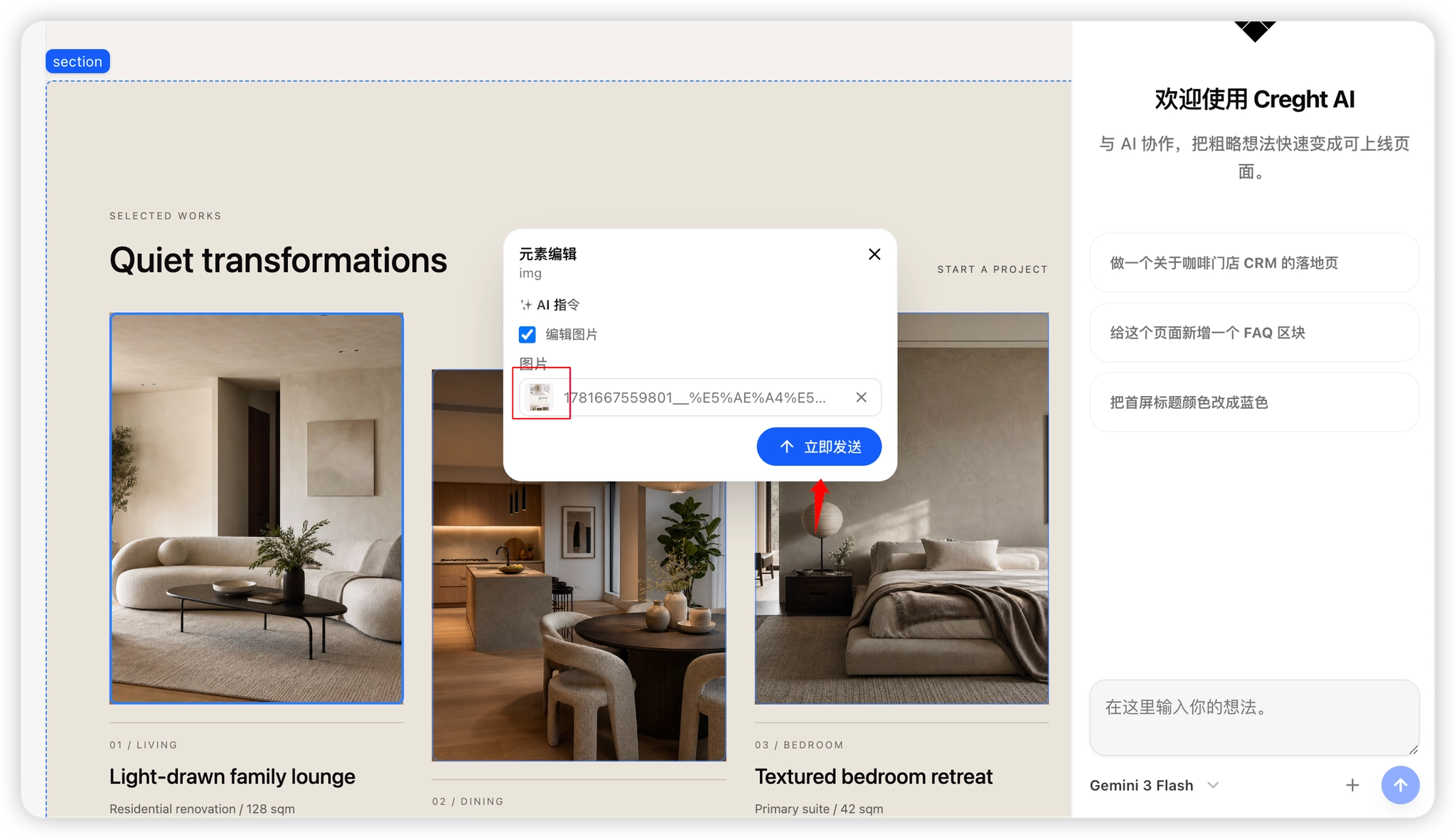
Second, click the send button in the right-side panel and let AI execute the change.
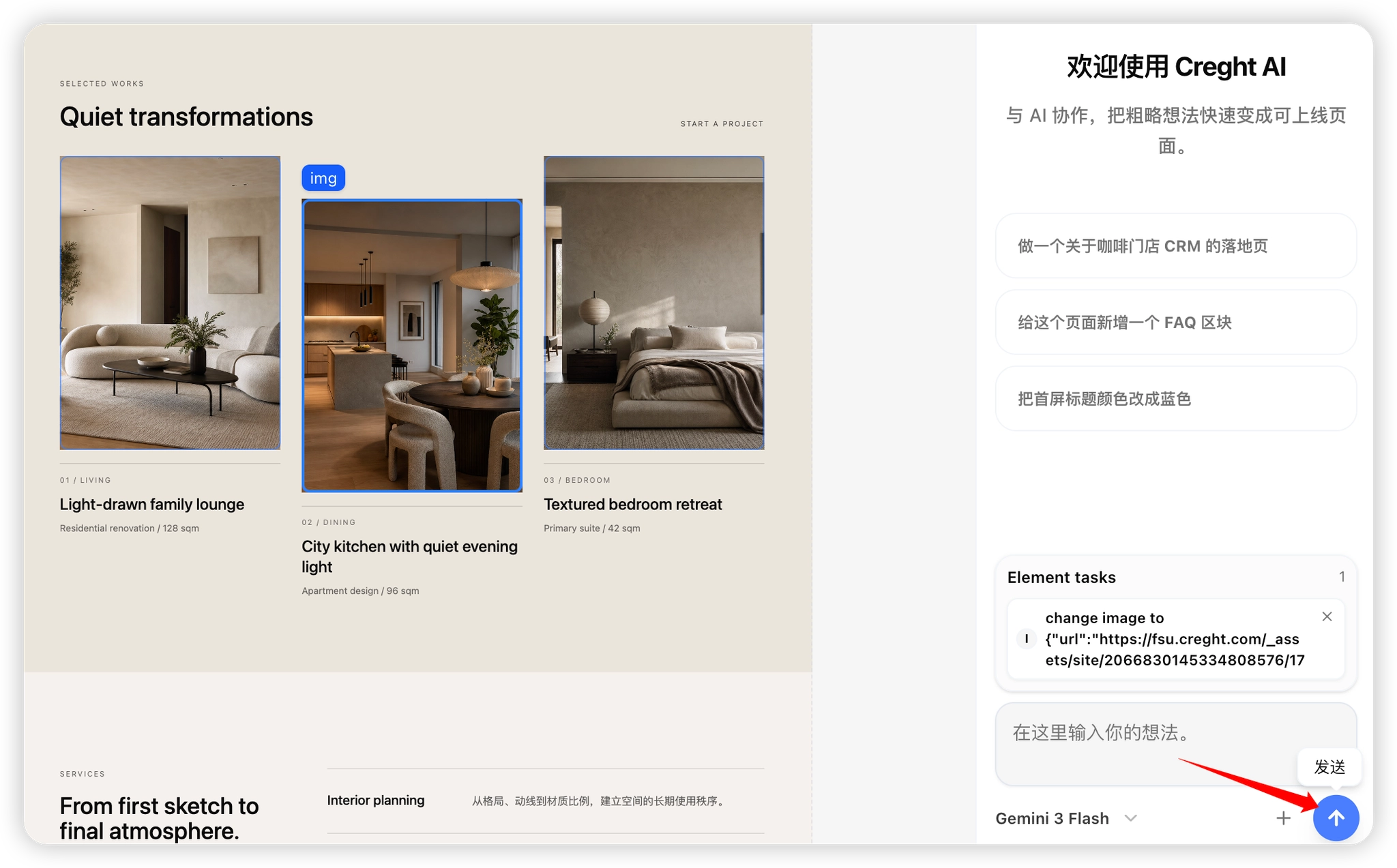
This method also supports batch editing. Select multiple items that need adjustment and send them to AI together for better efficiency and lower credit usage.
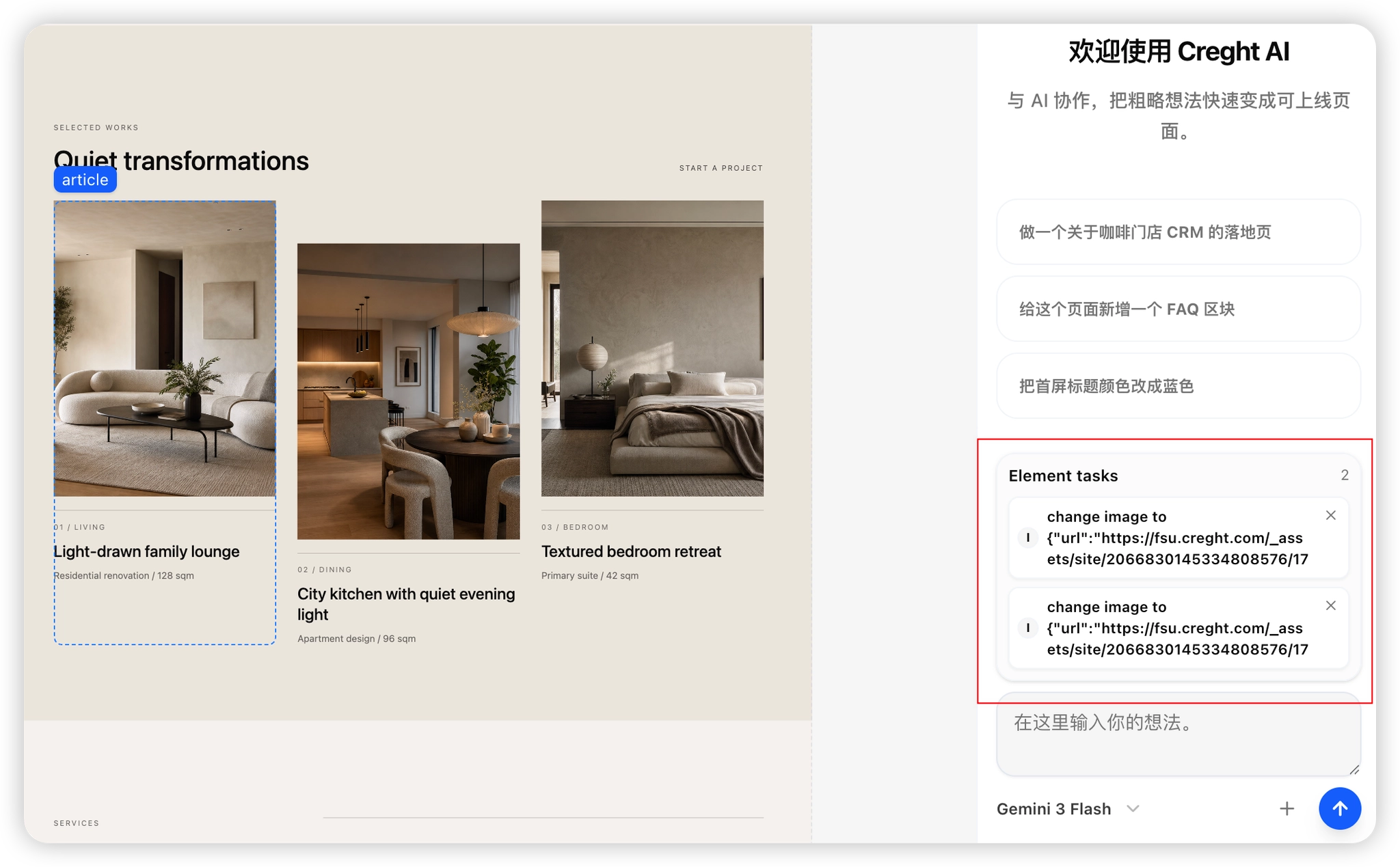
For larger content or style changes, you can also use AI directly.
Example instructions:
Change the entire website to a blue tech style.
Make the homepage more suitable for foreign trade customers.
Change all product introductions to English.
AI will automatically complete the updates based on your instruction.
Step 3: Add Pages or Sections
In addition to editing existing content, you can ask AI to expand the website.
Add a Contact Us Page
You can enter:
Add a contact us page with contact information, a map, and an online form.
Add a Team Introduction Section
You can enter:
Add a core team introduction section to the homepage.
Add a Customer Case Section
You can enter:
Add a customer case showcase section to the homepage.
AI will automatically add the requested content.
Step 4: Set Website SEO
Before publishing, it is recommended to set website SEO. SEO helps search engines better understand and index your website.
Click SEO in the left sidebar and fill in the following information:
Website Title
The title should include the brand name, business type, or core keywords.
Example:
Interior Furniture Manufacturer | XXX FurnitureWebsite Description
Use one sentence to describe your business and advantages.
Example:
A professional interior furniture manufacturer providing modern home furniture design, production, and export services.Website Keywords
Keywords can include both Chinese and English business terms.
Example:
家具制造商, Furniture Supplier, Home Furniture, Interior Furniture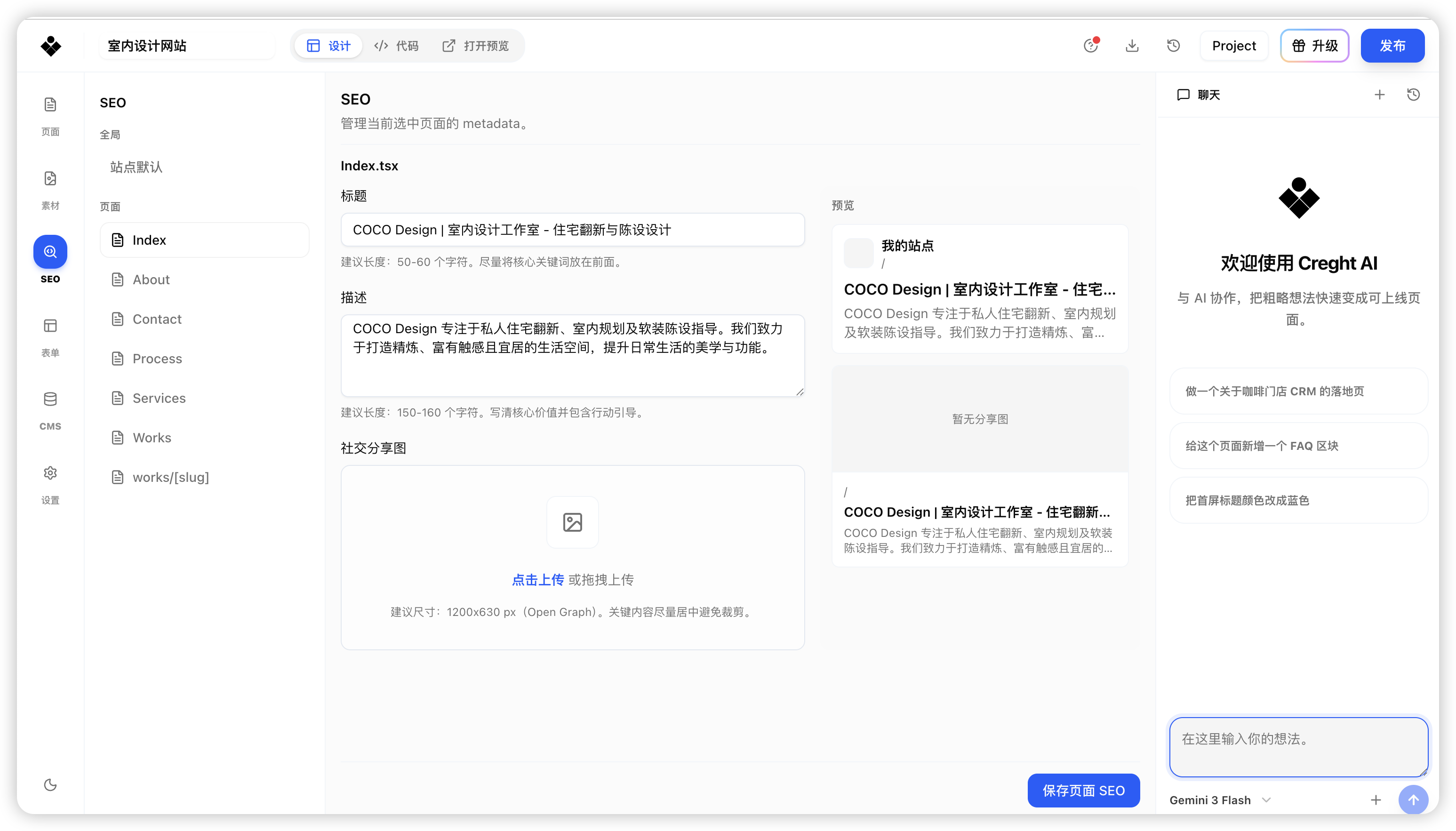
Step 5: Publish the Website
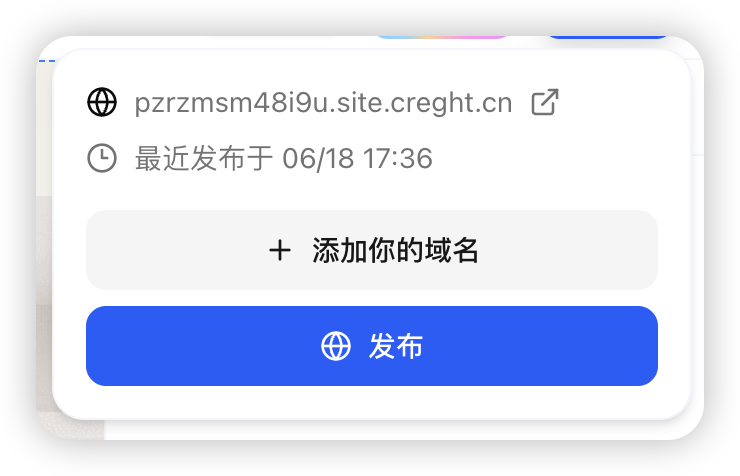
After editing the website, click Publish in the upper-right corner.
The system will automatically generate a website URL. Wait a few seconds, then open it.
Step 6: Bind Your Own Domain
If you need an official brand website, you can bind your own domain.
Example:
www.yourcompany.com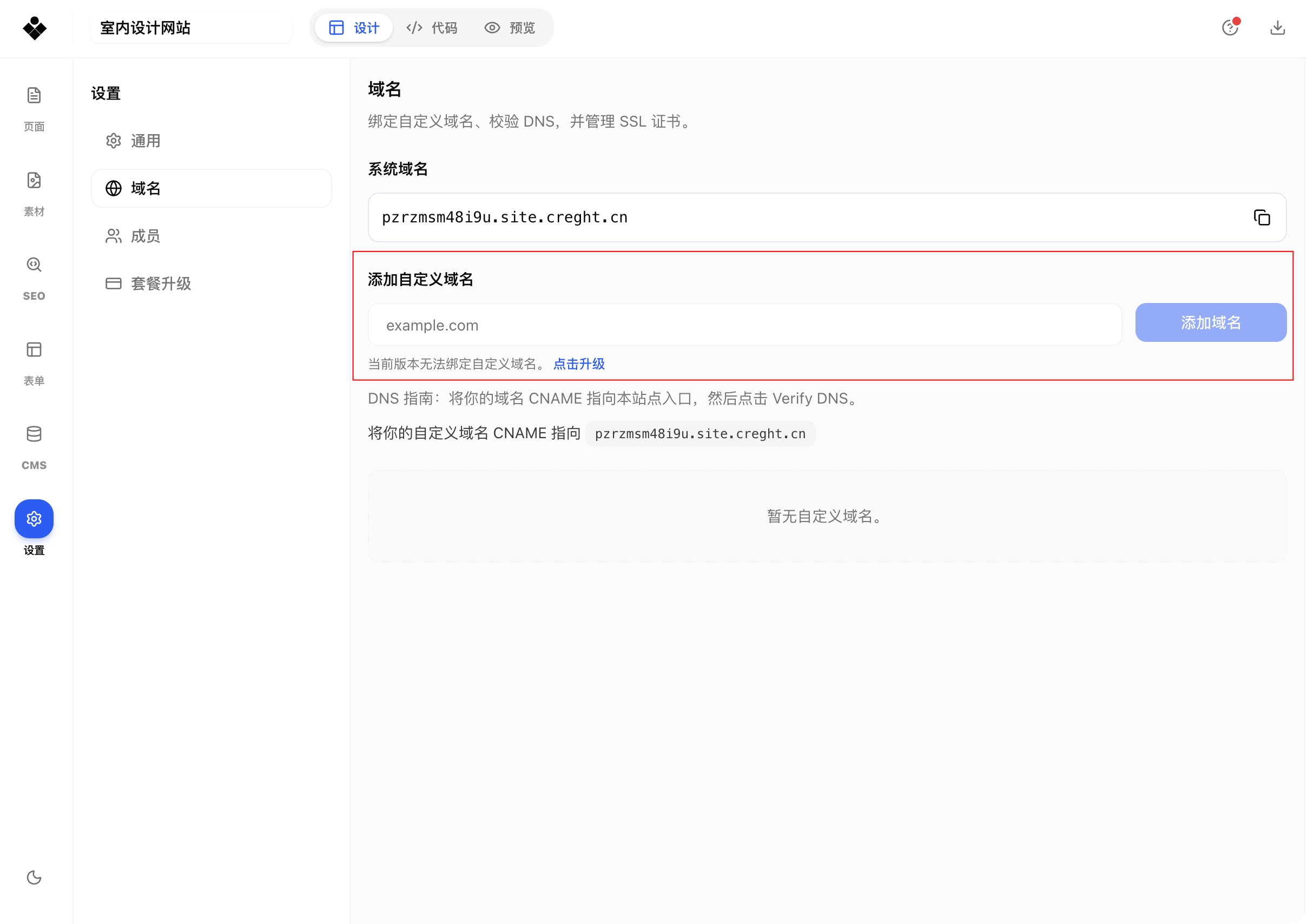
After binding, visitors can access the website directly through your brand domain.
For detailed steps, see How to Bind a Custom Domain.