
Use Pick to Bring a Section from Another Template into Your Site
You may like the hero from Template A, the product section from Template B, and a component or footer from Template C—and want to use all of them on your own website. In the past, you might have chosen one template first and then rebuilt the best parts of the others by hand.
With Pick, you can select sections or components from multiple templates in the template library, use them as references, and combine them in your own project. You no longer have to choose between entire templates: pick the strongest parts of each, then let AI adapt them to one consistent brand, content system, and visual style.
When to use Pick
- You like the hero in another template and want a similar hero on your site;
- You want to reuse a navigation, product card, pricing table, case-study section, FAQ, or other component;
- You need one section rather than the entire template;
- You want to keep the reference layout and visual rhythm while replacing the branding, copy, and images;
- The design is difficult to describe and you want to show AI exactly which section you mean.
Step 1: Pick the section in another template
Choose and open the Creght template you want to reference in the template library. Click the selection icon next to the Creght badge in the bottom-right corner. Move across the page to highlight selectable regions in blue, then click to lock your selection.
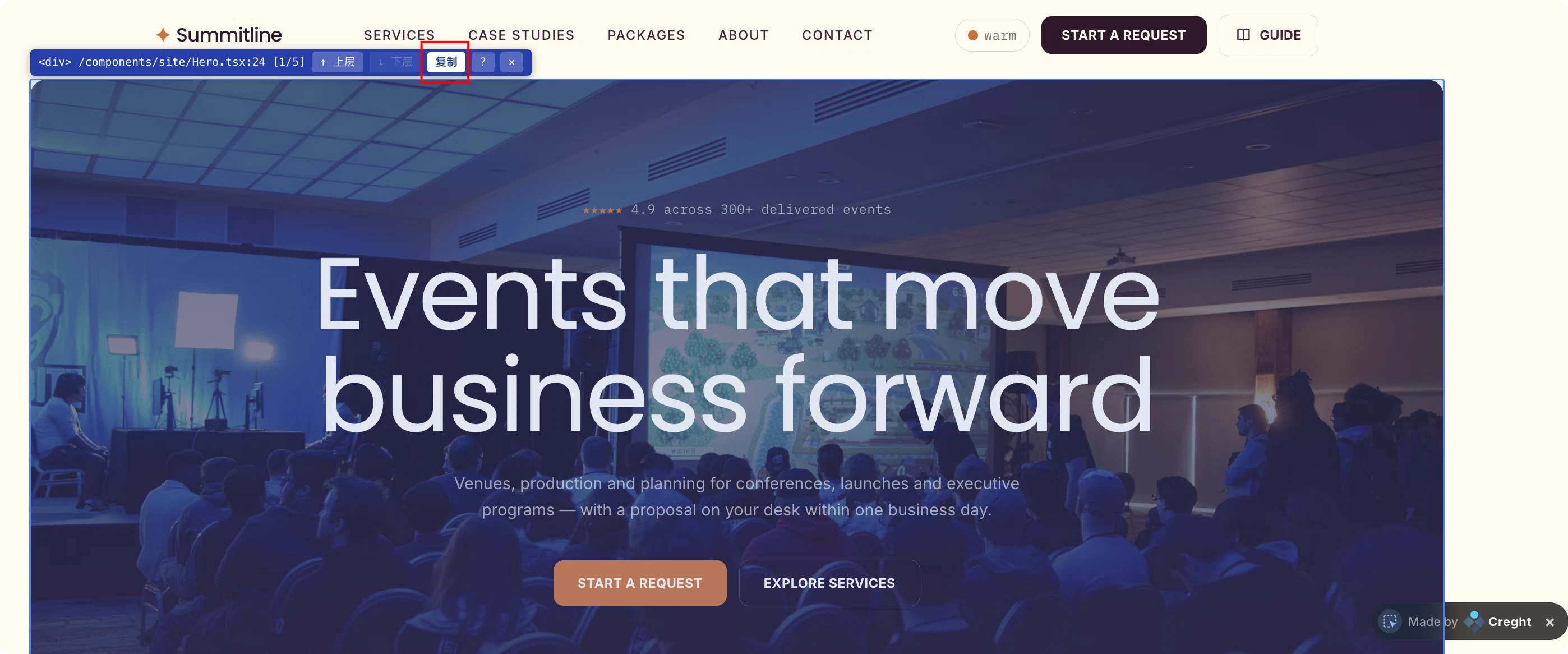
Use the toolbar to choose the right scope:
- Parent expands the selection to the complete parent section;
- Child narrows it to a more specific element or component;
- Copy copies the template reference;
- ? opens this guide;
- × cancels the selection.
If you selected only a heading or button but also need the background and layout, move to the parent. If the outline covers the whole page or includes unrelated content, move to a child. The final blue outline should closely match the section or component you want to use.
Step 2: Paste the reference into your own site's AI chat
Click Copy, return to your own Creght website project, and paste into its AI chat. A Template references area appears with a card such as “Template selection Hero.tsx:16.”
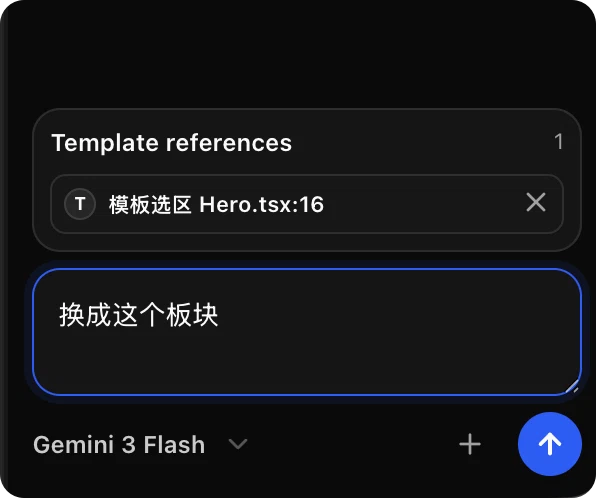
The card tells AI which external template section to use as a reference. It does not change your site until you add an instruction and send it.
Step 3: Tell AI where and how to use it
A good instruction includes:
- Action: add, replace, or reference only the layout or a component;
- Destination: the homepage hero, below the product section, before the footer, or on a specific page;
- Adaptation: the branding, copy, images, colors, links, and existing content to keep or replace.
For example:
Use this section on my homepage to replace the current hero. Keep my brand name and button links.Add a similar section below my product introduction and adapt it to my existing blue palette and product images.Use this pricing-card layout for my three plans. Do not use the template's original copy.Reuse only this navigation structure. Keep my existing logo and menu items.
Use this section as a new hero on my own homepage. Keep its large background image and centered layout, but replace the content with my brand copy, product image, and button links. Match the dark-blue palette already used on my site and optimize it for mobile.
Step 4: Review the result on your own site
AI reads the relevant structure from the source template and adds or replaces the section in the site you are currently editing. It then adapts the section to your instructions and brand content.
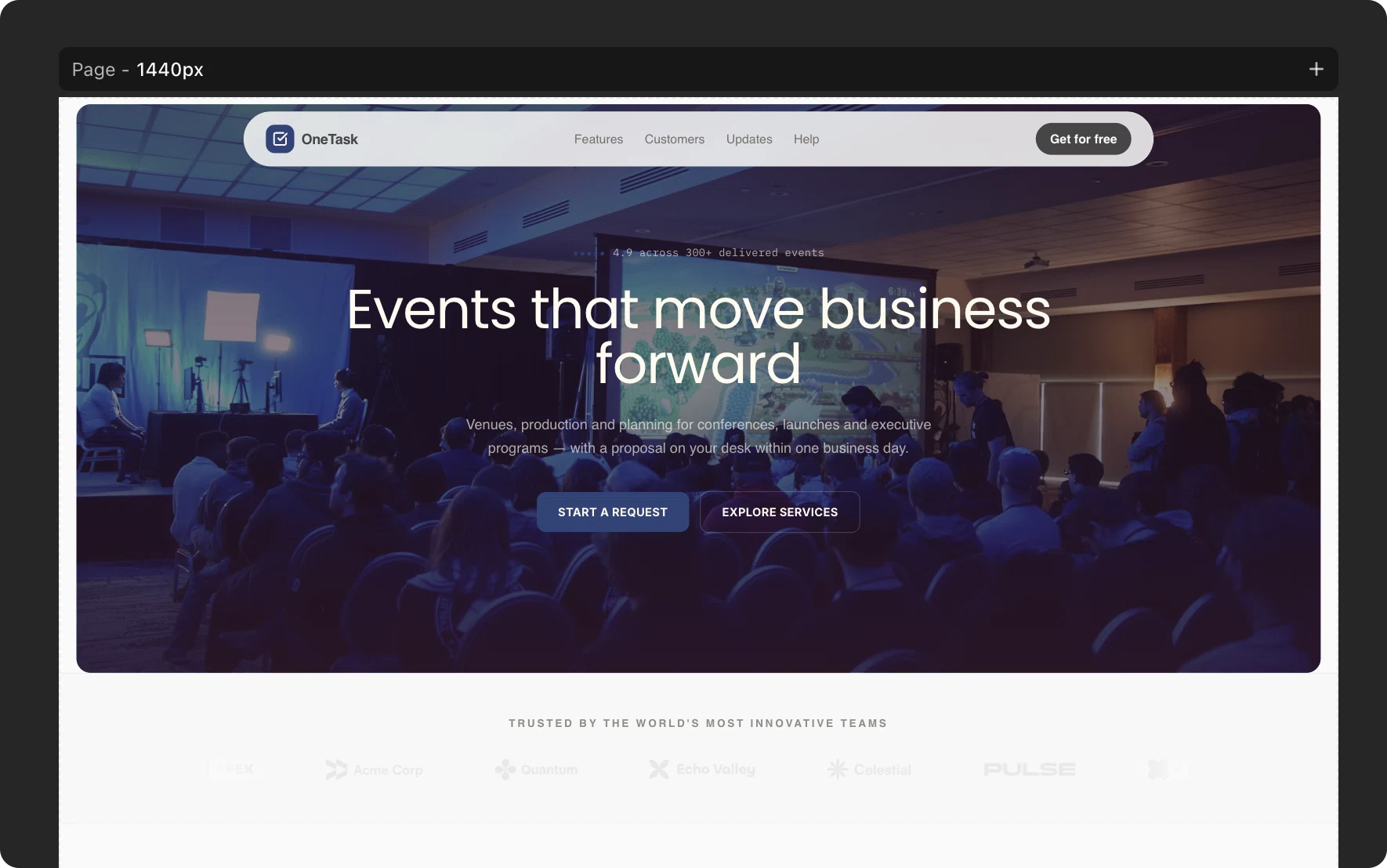
Review desktop and mobile. You can continue refining without picking again:
Make the heading smaller so the hero fits within one screen.Keep the new section but restore my original navigation.Stack the two buttons on mobile.Keep the layout and replace the image with the product image I just uploaded.
What Pick does not do
- It does not edit the source template. The picked template remains only a reference;
- It does not apply the whole template. AI focuses on the selected section and your instruction;
- It does not change your site when you click Copy. Paste and send the reference from your own project first;
- It does not force you to reuse the original copy or images. You control what to retain and what to replace.
Frequently asked questions
Which website receives the picked section?
The website whose AI chat you use to paste the reference and send the instruction. The source template remains unchanged.
Can I pick only one component?
Yes. Use Parent and Child until the blue outline matches the component, then copy it.
Why does no template reference appear after pasting?
Paste directly into the Creght AI chat in your own site. If the browser blocks clipboard access, allow permission and copy again.
Can I reuse only the design, not the content?
Yes. Say “Use only the layout and style, not the original copy or images,” then tell AI which content from your site should replace it.
In one sentence
Pick a section in another template → copy the reference → return to your own site → paste it and tell AI where and how to adapt it. Pick makes it easy to bring strong sections and components from other templates into your own Creght website.