
Domain Binding Guide
After publishing your website, you can access it with the free domain provided by the system.
Example:
your-site.site.creght.cnIf you want to use your own branded domain, for example:
www.yourcompany.comYou can do that by binding a custom domain.
This guide walks you through the custom domain setup process.
Why Bind Your Own Domain
Compared with the default domain, a custom domain is better for official business use.
Default domain:
your-site.site.creght.cnCustom domain:
www.yourcompany.comBenefits:
- More professional
- Easier to remember
- Stronger brand recognition
- Better for long-term SEO
- Easier to promote and share
Before You Start
Make sure you have the following:
A Published Website
Your website needs to be published at least once.
A Domain Name
Examples:
- yourcompany.com
- yourbrand.com
You can purchase a domain from providers such as:
- Alibaba Cloud
- Tencent Cloud
- Cloudflare
- GoDaddy
- Namecheap
Domain Management Access
You need access to your domain provider dashboard so you can configure DNS records.
Configure DNS Records
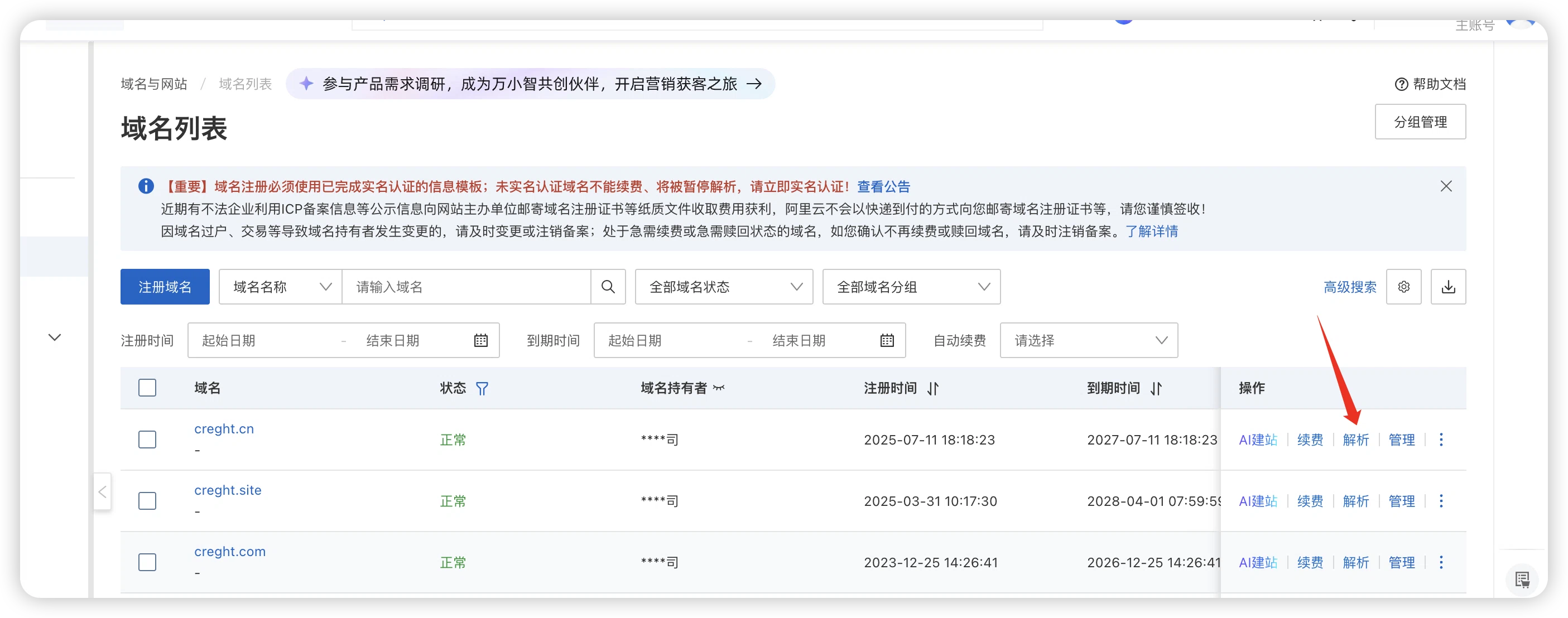
Go to your domain provider dashboard.
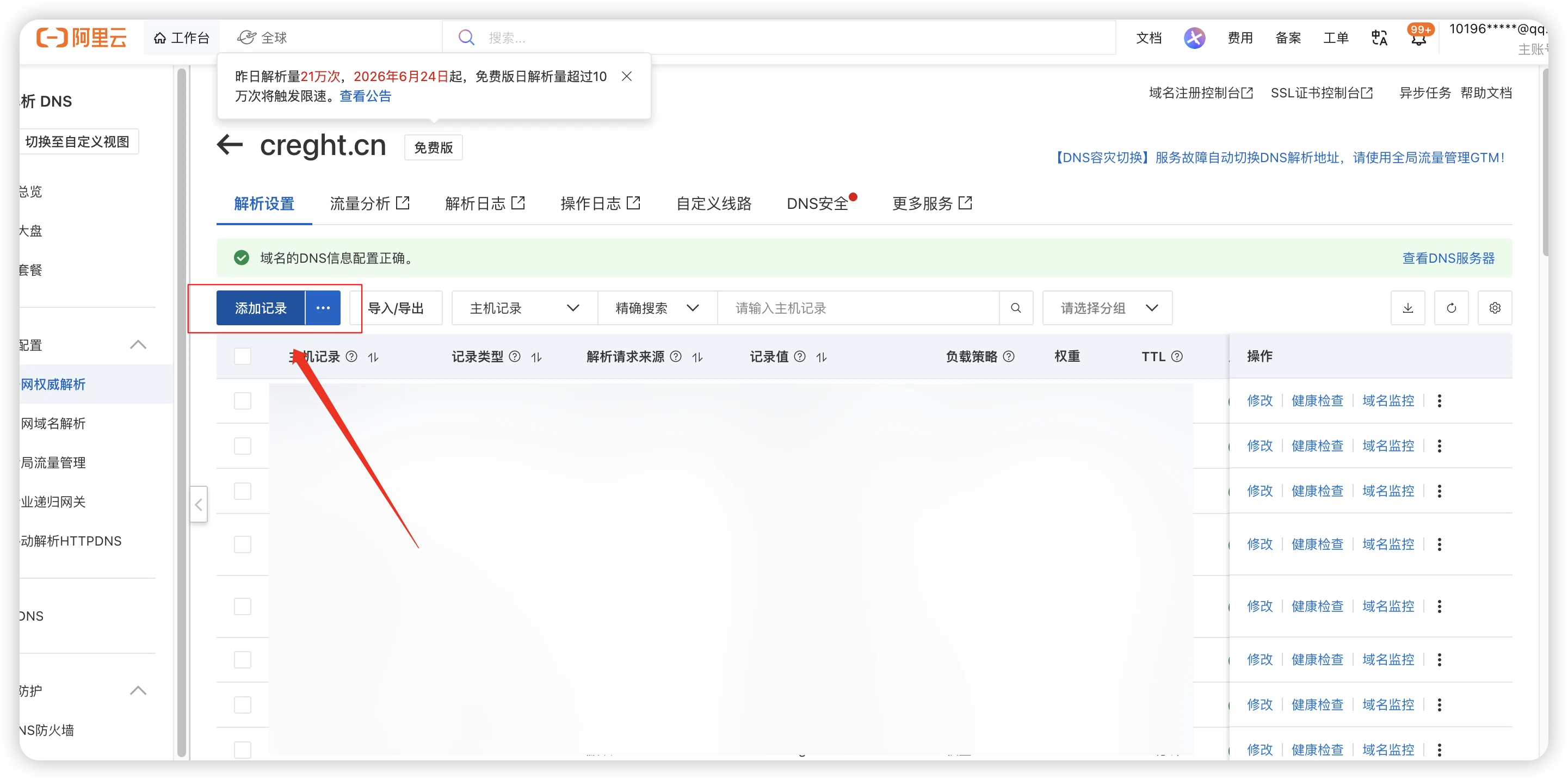
Find DNS Management or DNS Records, then add a new record.
Configure CNAME
Example:
| Type | Host | Value |
|---|---|---|
| CNAME | www / @ | your-site.site.creght.com |
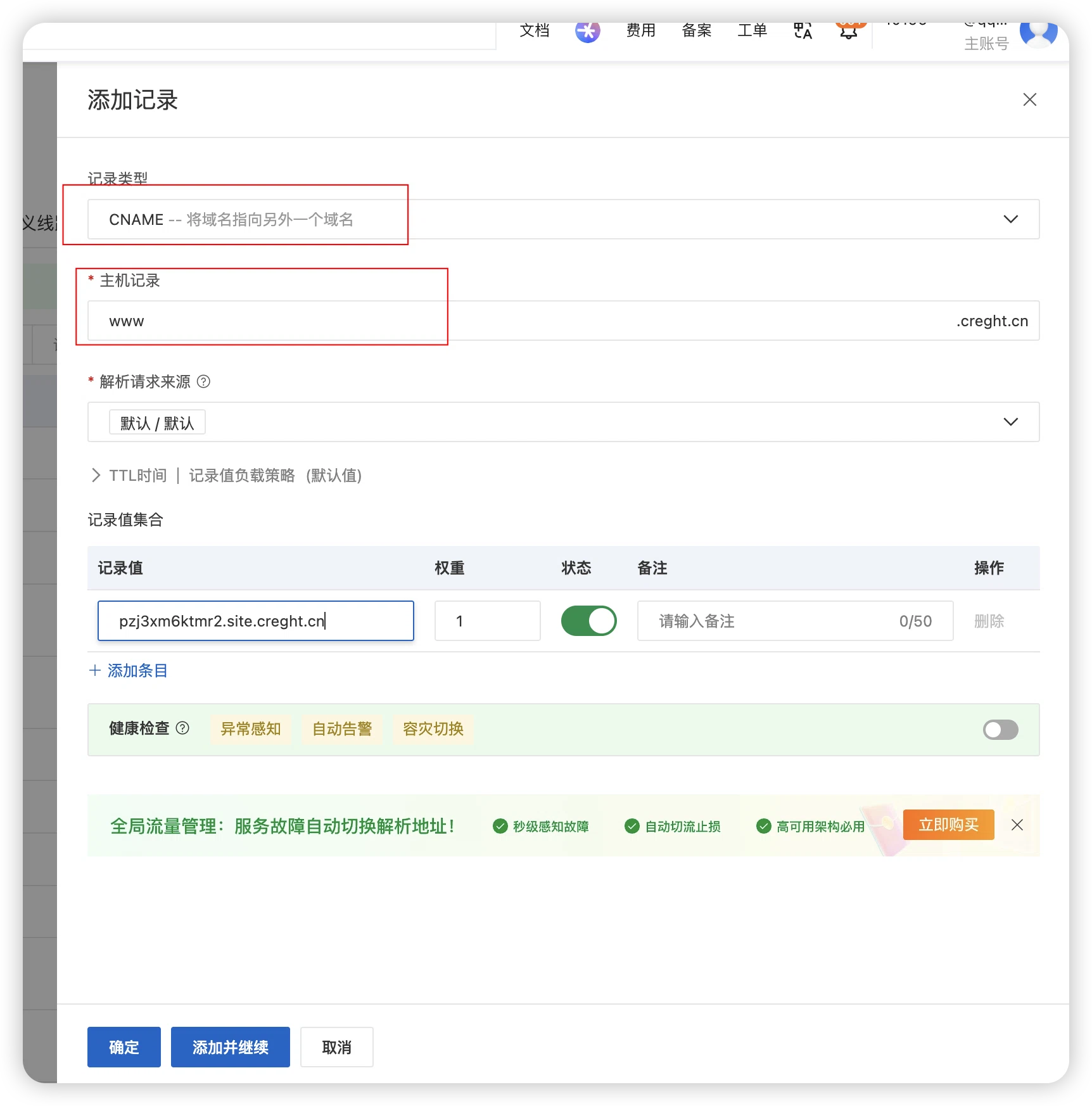
Save the record.
Add a Custom Domain
Go to: Settings → Domains
Enter the domain you want to bind.
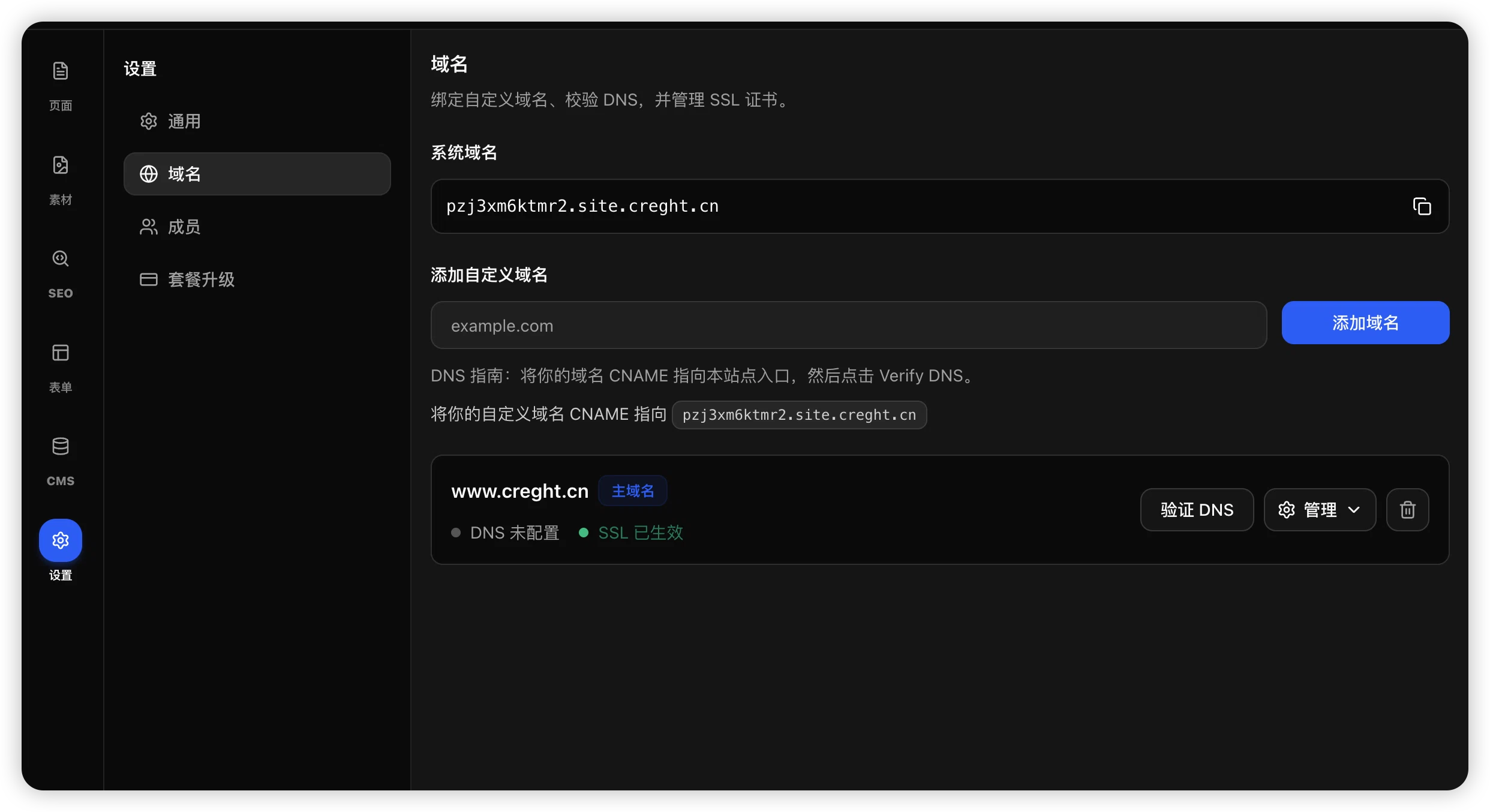
Example:
www.yourcompany.comClick: Add Domain
Note: A paid plan is required to bind a custom domain.
Alibaba Cloud Example
Go to:
Domain Console → DNS Settings
Click Add Record and fill in:
Record type: CNAME
Host record: www
Record value:
Copy the free domain from the domain management page in settings.
your-site.site.creght.cnSave the record.
Cloudflare Example
Go to: DNS
Click: Add Record
Fill in Type:
CNAMEName:
wwwTarget:
your-site.site.creght.cnSave the record.
Wait for DNS to Take Effect
After DNS is configured, global DNS propagation takes time.
It usually takes:
- A few minutes
- Up to 24 hours
In most cases, it takes effect within a few minutes.
Apply for an SSL Certificate
After DNS takes effect, return to Creght.
Click:
Apply for SSL
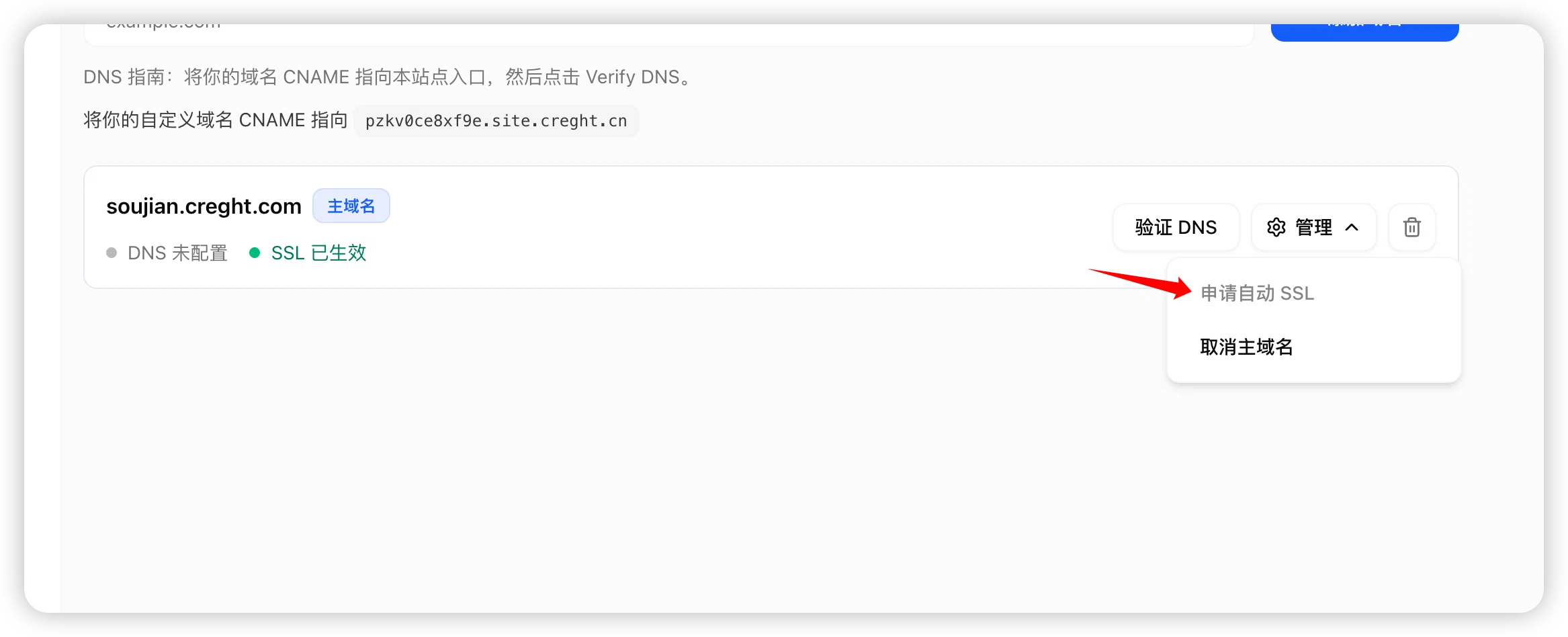
The system will automatically issue an HTTPS certificate for your domain.
HTTPS Takes Effect
After SSL is issued successfully, visit:
https://www.yourcompany.comThe browser will show a secure lock icon.
Your website is now officially online.
Root Domain Setup
Some users want to use:
yourcompany.cominstead of:
www.yourcompany.comThis depends on what your domain provider supports.
Recommended setup:
yourcompany.comRedirect it to:
www.yourcompany.comThis is easier to manage and more stable.
Change a Domain
If you need to change the domain later:
Go to:
Settings → Domains
Delete the old domain.
Add the new domain.
FAQ
The domain cannot be accessed after binding
Check:
- Whether DNS is configured correctly
- Whether enough time has passed
- Whether the domain was entered correctly
SSL is not being issued
Check:
- Whether DNS has taken effect
- Whether the domain points to the correct address
It usually completes after a few minutes.
Can I bind multiple domains?
Yes.
Examples:
www.yourcompany.comyourbrand.comwww.yourbrand.comCan I bind overseas domains?
Yes.
Domains registered with the following providers can all be bound normally:
- Alibaba Cloud
- Tencent Cloud
- Cloudflare
- GoDaddy
- Namecheap
Domain Binding Complete
After completing these steps, your website will have its own branded domain.
Example:
https://www.yourcompany.comVisitors can access your site directly through the branded domain, and search engines will gradually index your website content.
Your website is now officially online with its own branded domain.